

If you’re exploring Sage Intacct Power BI integration to build financial reports, one of the first decisions you’ll need to make is how to get your data from one system to the other.
Sage Intacct doesn’t have a native Power BI connector, which leaves you with several ways to access the information. The challenge is knowing which approach can support the reports you want to build without creating unnecessary maintenance work for your finance or IT team.
Your choice matters, particularly if you’re working with large amounts of transaction data, reporting across multiple entities, or pulling information from other business systems.
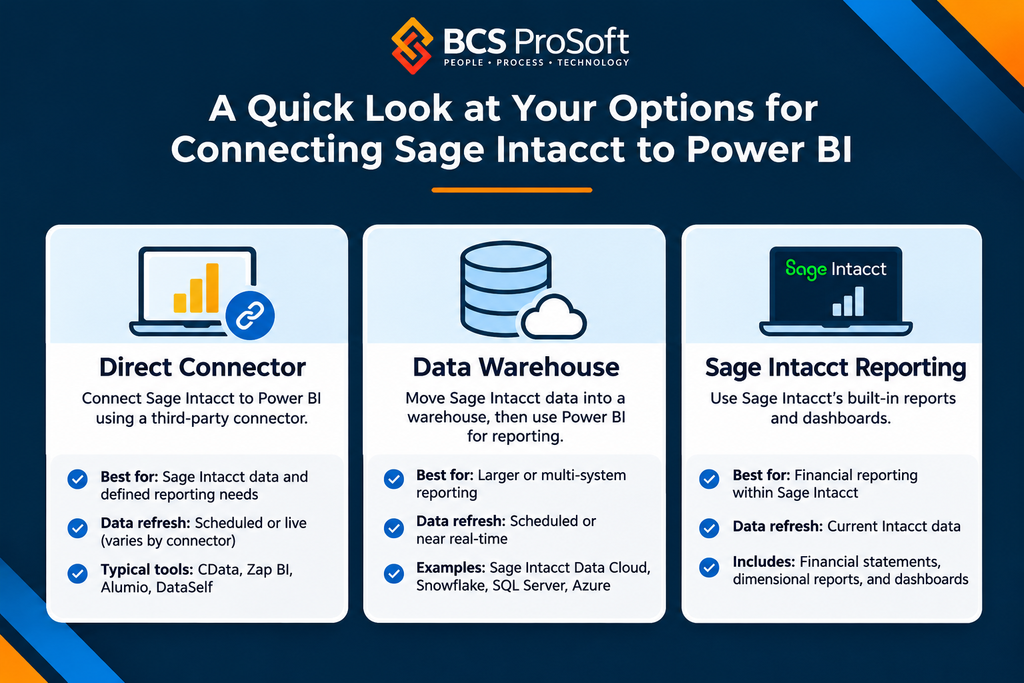
A Quick Look at Your Options for Connecting Sage Intacct to Power BI
How Do the Different Sage Intacct Reporting Options Work?
Each option comes with different setup requirements and ongoing responsibilities. Before choosing one, it’s worth understanding how your data will reach Power BI, what your team will need to maintain, and where you might run into limitations.
Option 1: Connect Sage Intacct Directly to Power BI
A third-party connector gives Power BI access to Sage Intacct data without having to build a separate warehouse.
CData, Zap BI, Alumio, and DataSelf are among the products available. Each handles integration differently, so you’ll want to check which data it can access and how that data reaches Power BI. You can find available solutions through the Sage Intacct Marketplace.
Power BI generally works with connected data in two ways:
- Import mode: Power BI stores a copy of the data, which you update through scheduled or manual refreshes.
- DirectQuery: Power BI sends queries to the connected source when someone opens or interacts with a report.
Not every connector supports both. For example, CData’s Power BI connector supports DirectQuery, while its Connect AI cloud offering doesn’t currently support that mode.
This route is worth considering if most of your reporting data lives in Sage Intacct and you’re building a relatively defined set of reports.
There is still some maintenance involved. Someone needs to manage the connection, monitor refreshes, and address performance issues if reports start taking too long to load.
For more on accessing financial data, see our Sage Intacct API guide.

Option 2: Use a Data Warehouse
If your finance team needs information from several systems, a data warehouse may be a better fit.
A warehouse holds a separate copy of your reporting data. Sage Intacct data is loaded into the warehouse, where it can be combined with information from other applications before Power BI reads it.
For example, you might need to compare financial results from Sage Intacct with sales activity from your CRM or payroll information from another system.
There are several ways to set this up. Sage Intacct Data Cloud can sync supported financial data into your Snowflake account. Third-party pipelines can also move data into Snowflake, SQL Server, or supported Azure platforms.
The trade-off is the additional work involved. Your team needs to manage the data model, check that information is updating correctly, and reconcile financial figures back to Sage Intacct. Custom pipelines require ongoing attention as well.
Option 3: Stay With Sage Intacct Reporting
It’s worth checking what Sage Intacct can already do before adding another reporting system.
Sage Intacct has built-in financial reports and dashboards, including dimensional reporting that lets you view results by department, location, project, or entity.
If your team mainly needs financial statements, budget comparisons, and other reports based on Intacct data, those capabilities may cover much of what you’re looking for.
Power BI becomes more useful when you need to bring information from other systems into the same reports or build financial models that go beyond what’s practical in Sage Intacct.
The connection method you choose will also affect how you build your reports. Even with Sage Intacct data available in Power BI, you’ll need to organize it properly so your financial figures are accurate and your reports work as expected.
What Sage Intacct Data Should You Bring Into Power BI?

Once you’ve decided how to connect the systems, you’ll need to decide what information belongs in your Power BI model.
The reports your finance team uses most often are a good place to start. For many businesses, that means general ledger detail, accounts receivable and payable, and financial results across entities.
General Ledger and Dimensions
GL transaction detail is a good foundation for financial reporting in Power BI.
Along with account numbers, dates, and amounts, you’ll want to include the Sage Intacct dimensions your team uses, such as department, location, project, and entity.
Those dimensions make it possible to answer questions like how expenses compare across departments or which projects are running over budget.
How you organize the data matters, too.
In Power BI, a star schema is a common way to structure financial data. GL transactions are stored in one central table, with related tables containing information about accounts, departments, projects, and other dimensions.
This gives your reports consistent relationships to work from, particularly when several reports use the same underlying data.
You can learn more about how these categories work in our guide to dimensional accounting in Sage Intacct.
Accounts Receivable and Accounts Payable Aging
AR and AP data can help your team track outstanding invoices, overdue balances, and upcoming payment obligations.
You might build a report showing overdue receivables by customer or compare vendor payments coming due over the next 30 days.
One thing to watch is historical aging. If you need to recreate an aging report from a previous month, you’ll need the balances and transaction history as they stood at that time. Today’s open invoice data may not give you an accurate picture of an earlier period.
Multi-Entity Financial Reporting
For companies with multiple entities, Power BI can bring entity-level financial information into a shared reporting model.
You’ll need consistent account mappings and the right entity identifiers so the numbers can be compared accurately.
Consolidated reporting takes additional work. Intercompany eliminations, currency conversions, and other accounting adjustments still need to be reflected in the model.
Our multi-entity reporting guide covers these considerations in more detail.
How to Decide Which Sage Intacct Power BI Setup Is Right for You

Start with the reports you want to build and where the data for those reports lives.
If most of the information is already in Sage Intacct, a direct connector may be all you need. If you’re combining financial data with information from other systems, a warehouse is worth evaluating. And if your reports focus on standard financial statements and dimensional analysis, check whether Sage Intacct can already produce them.
Before choosing an approach, ask yourself:
- Where does the data come from? Are you reporting exclusively on Sage Intacct, or do you need information from other applications?
- How current does it need to be? Will daily refreshes work, or do your reports need more frequent updates?
- How complex are the reports? Are you working with standard financial metrics, or do you need historical snapshots and calculations across multiple datasets?
- Who will maintain the setup? Does your team have someone who can manage Power BI connections, data models, and potential refresh issues?
You don’t need to have every technical detail worked out before making a decision. Having a clear idea of the reports you need will make it easier to evaluate the available options.
How Can BCS ProSoft Help With Sage Intacct Power BI Reporting?
Get Help With Your Sage Intacct Power BI Reporting
Connecting Sage Intacct to Power BI takes some planning, especially when you’re working with multiple data sources or building reports that need to match your financial statements.
The right setup starts with understanding what your finance team needs from its reports and how that information should be brought into Power BI.
At BCS ProSoft, we help businesses make those decisions. Our Business Intelligence and technical consulting teams can help you evaluate connection options, plan your integration, and build reports around your financial reporting needs.
If you’re considering Power BI for Sage Intacct, we’d be happy to discuss what you’re looking to accomplish and help you determine the next steps.
CTA Button: Talk to a Reporting Specialist
Frequently Asked Questions
Does Sage Intacct Connect to Power BI Natively?
No. Sage Intacct doesn’t include a built-in Power BI connector. You’ll need a third-party connector, data pipeline, or export to make its financial data available in Power BI.
Can Power BI Use DirectQuery Against Sage Intacct?
Yes, if you’re using a connector that supports it. CData’s Power BI connector is one example, although DirectQuery support varies between products and deployment methods.
Do I Need a Data Warehouse for Sage Intacct Reporting?
Not necessarily. If you’re building a few Power BI reports using Sage Intacct data, a direct connector may be enough. A warehouse is worth considering when you need to combine data from multiple systems or support more complex reporting.
What Data Should I Bring Into Power BI First?
Start with the financial data needed for your most important reports. GL transactions and dimensions are often a good foundation, followed by AR/AP aging and multi-entity information where relevant.
How Do Sage Intacct Dimensions Show Up in Power BI?
Dimensions such as department, location, project, and entity can be brought into Power BI as fields or related tables. You can then use them to filter financial results and build reports around the same categories your team uses in Sage Intacct.