

You’ve made the decision to move from QuickBooks to Sage Intacct. Now comes the part that usually lands on the controller’s desk: figuring out how to get your company’s financial data into the new system without disrupting the accounting work that still needs to happen.
There are quite a few decisions to make before the migration begins. How much QuickBooks history should you bring over? What happens to your chart of accounts? How will you handle unpaid invoices, bank reconciliations, and the first month-end close in Sage Intacct?
And perhaps the biggest question: How do you know everything transferred correctly?
If you’re responsible for your company’s QuickBooks to Sage Intacct migration, this guide will walk you through what to expect, which decisions your finance team needs to make, and how to plan the cutover.
What Actually Moves During a QuickBooks to Sage Intacct Migration?
One of the first things we discuss with companies preparing for a migration is what they want to bring from QuickBooks.
It’s a worthwhile conversation because the answer affects the project timeline, the amount of data preparation required, and how your team will work in Sage Intacct after go-live.
Some records, such as customer and vendor lists, can typically be imported after cleanup and mapping. Other information, including your chart of accounts and financial reports, may need to be rebuilt around your new accounting structure.
Then there’s historical transaction data, which deserves its own discussion.
Here’s a general breakdown of what happens to different types of QuickBooks data during migration.
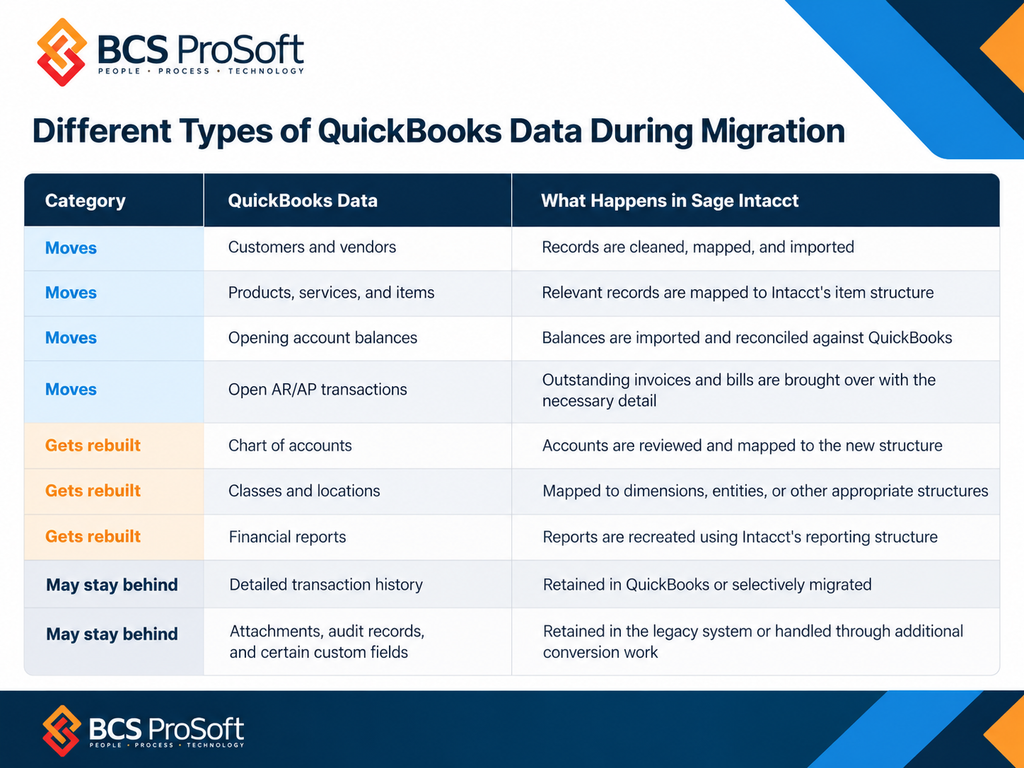
The exact scope depends on how your company uses QuickBooks today, the Intacct modules you’re implementing, and what your finance team needs access to after the migration.
One thing we recommend addressing early is the condition of your existing data. Duplicate vendors, inactive customers, inconsistent account names, and old records that nobody uses anymore should all be reviewed before importing anything.
Otherwise, those same issues can follow your team into Sage Intacct.
Rebuilding Your Chart of Accounts and QuickBooks Classes in Sage Intacct
Your chart of accounts is one of the most important parts of the migration to get right.
Many companies have spent years adding accounts in QuickBooks as their reporting needs changed. They might have separate accounts for different departments, locations, or lines of business because that was the most practical way to get the financial reports they needed.
Sage Intacct gives you another way to organize that information through dimensional accounting.
How Your Chart of Accounts Changes
Let’s say your company currently has separate expense accounts for three departments:
- 6100 – Marketing Expenses – Sales
- 6110 – Marketing Expenses – Operations
- 6120 – Marketing Expenses – Administration
In Sage Intacct, your team may be able to use one marketing expense account and assign transactions to departments using dimensions.
That means your finance team can still report on marketing expenses by department without maintaining a separate general ledger account for every combination.
This is a relatively simple example, but the implications become much more significant for companies tracking expenses across multiple offices, departments, projects, or business units.
Before importing your opening balances, your implementation team needs to establish how the existing accounts map to the new structure. That includes identifying which accounts should remain, which can be consolidated, and where dimensions should be used.
We cover the reporting structure in more detail in our guide to dimensional accounting in Sage Intacct.
What Happens to QuickBooks Classes and Locations?
If your company uses QuickBooks classes or locations, you’ll need to decide what those classifications should represent in Sage Intacct.
For example, you might currently use:
- Classes to track departments such as Sales, Operations, and Administration.
- Locations to distinguish between offices in Houston, Dallas, and Austin.
Your implementation team can evaluate how those classifications should map to Intacct’s dimensions.
There’s an additional consideration if your locations represent separate legal entities. In that case, you may need to establish a multi-entity accounting structure rather than treating every location as a reporting category within one company.
For businesses managing several companies, our guide to multi-entity accounting explains how that structure works in Sage Intacct.
The important thing is to make these decisions before the data conversion begins. Changing your accounting structure after balances and transactions have already been imported can create additional reconciliation and reporting work.
How Much QuickBooks History Should You Bring Into Sage Intacct?

This is one of the bigger decisions your finance team will make during the migration.
Most controllers would prefer to have all their financial information available in one place. That’s understandable, especially when you regularly need to research older transactions, compare prior-year results, or respond to audit requests.
However, migrating years of detailed transaction history can add substantial work to the project, particularly when your new accounting structure differs from the one in QuickBooks.
There are generally three approaches worth considering:
Option 1: Bring Over Opening Balances
With this approach, you establish your opening balances in Sage Intacct as of an agreed cutover date and migrate the open transactions needed to continue operations.
Detailed historical activity remains in QuickBooks.
This can be appropriate when your company primarily needs accurate starting balances and access to older records for occasional reference.
You’ll need a plan for retaining access to QuickBooks, including the records and supporting documentation required for audits and financial reviews.
Option 2: Bring Over Opening Balances and Comparative History
Some companies want prior-period financial information available in Sage Intacct from the beginning.
For example, if you’re switching in January, your CFO may want to compare the current year’s financial performance against the previous year without switching between systems.
In that situation, your implementation team can evaluate importing historical general ledger balances for selected periods.
This gives your reporting team access to comparative financial information, although it won’t necessarily provide the individual transactions behind those balances.
Option 3: Migrate Detailed Transaction History
A more extensive conversion may be appropriate when your company has operational or reporting requirements that depend on accessing individual historical transactions inside Sage Intacct.
This approach requires careful planning.
Your team needs to consider how historical accounts, classes, customers, vendors, and transactions will map to the new system. You’ll also need to determine how to handle any differences between the old and new accounting structures.
Our recommendation is to make the history decision based on how your finance team will use the information.
Think about the reports you’ll need, how frequently you research older transactions, your audit requirements, and how long QuickBooks will remain accessible.
Those answers should guide the conversion scope.
Does Migrating From QuickBooks Online vs. Desktop Make a Difference?
Yes. The version of QuickBooks you’re leaving affects how your data is extracted and prepared for Sage Intacct.
With QuickBooks Online, your team can export various lists, reports, and accounting records through QuickBooks’ available export features. Depending on the data required, the migration may also involve APIs or third-party extraction tools.
With QuickBooks Desktop, the process may involve working with the company file, exporting reports and lists, or using Desktop-specific data extraction methods.
Intuit provides separate export instructions for QuickBooks Online and QuickBooks Desktop.
In either case, exporting the data is only part of the work. Records still need to be reviewed, mapped to the Sage Intacct structure, imported through the appropriate method, and validated.
It’s also important to identify anything that may need special handling, such as transaction attachments, custom fields, recurring transactions, or historical audit information. During implementation planning, we review the source system and the required data so the extraction and conversion approach is established before the final cutover.
Your QuickBooks to Sage Intacct Cutover Plan: T-60 to T+30 Days
Once you’ve decided what data is moving and how your accounting structure will work, the next priority is planning the actual transition.
Your cutover date is the point when Sage Intacct becomes the accounting system used for new transactions.
There is preparation leading up to that date and validation afterward, particularly during your first month-end close.
The following timeline illustrates what the final 60 days before go-live and the first 30 days afterward might look like. Your full Sage Intacct implementation may begin considerably earlier, depending on the complexity of your business.
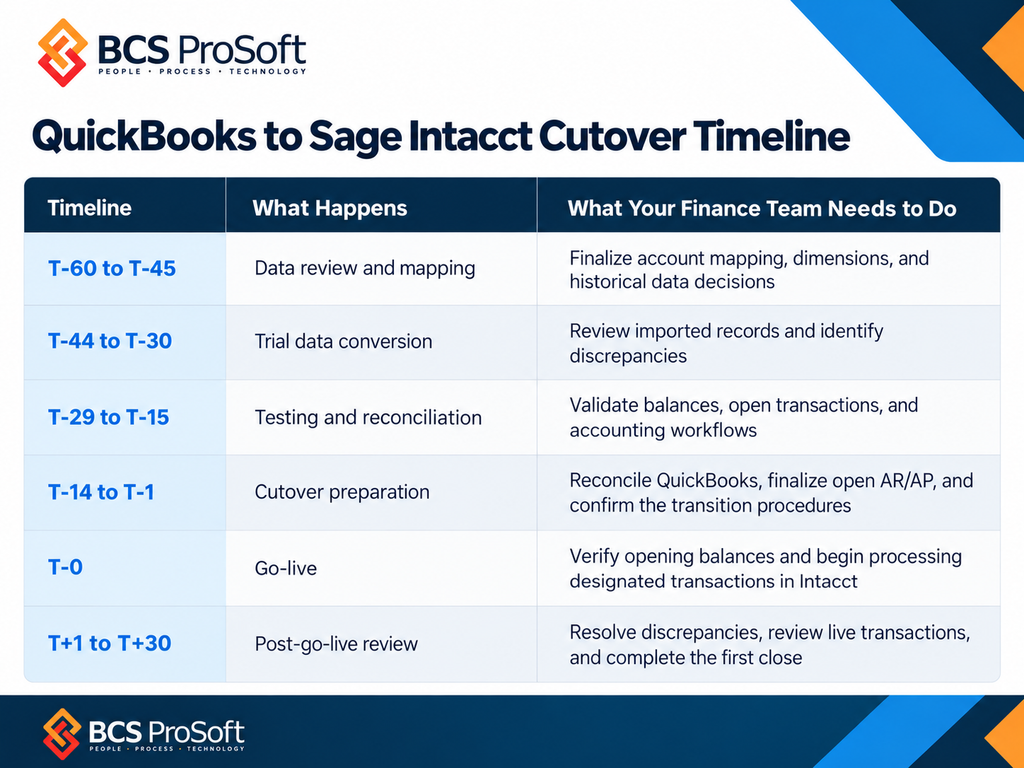
Let’s look at a few areas that deserve extra attention during this period.
Handling Open Accounts Receivable and Accounts Payable
Your company probably won’t have every invoice collected or every vendor bill paid when you switch systems.
Those open transactions need to be accounted for during the migration so your team can continue collecting payments and paying vendors without confusion.
For example, suppose your business has $175,000 in outstanding customer invoices at the end of the final QuickBooks accounting period.
Your Sage Intacct opening balances need to reflect the correct receivables position, but your AR team also needs the individual unpaid invoices so they know which customers owe money and when payments are due.
A general ledger balance alone doesn’t provide that information.
The same principle applies to accounts payable.
Before cutover, your team should:
- Reconcile AR and AP aging reports against the general ledger.
- Identify invoices and bills that will remain open.
- Confirm customer and vendor records.
- Establish which system will handle payments received or issued around the cutoff date.
- Validate the imported open transactions against the final QuickBooks reports.
The conversion also needs to account for how open transactions and opening GL balances are posted, so amounts aren’t counted twice.
This is an area where we recommend taking the time to test the process before go-live.
Bank Accounts, Reconciliations, and Bank Feeds
Bank reconciliation is another area where a little extra planning can prevent a frustrating first month in the new system.
Ideally, your finance team should complete the latest available bank reconciliation in QuickBooks before the final balances are established. You’ll also want to document outstanding checks, deposits in transit, and other reconciling items that may clear after the cutover.
These transactions need to be handled correctly in Sage Intacct so your bank reconciliation continues from an accurate starting position. Your team should also confirm when QuickBooks bank feeds will stop being used for new accounting activity and when the corresponding connections in Sage Intacct will begin operating.
Pay particular attention to transactions dated near the cutoff. You don’t want bank activity imported twice or omitted because it falls between the two systems.
Running a Parallel Close Before Retiring QuickBooks
A parallel close gives your finance team an opportunity to compare financial results between QuickBooks and Sage Intacct before relying entirely on the new system.
The approach will depend on your implementation plan. Some companies may run selected transactions through both environments during testing. Others may compare Sage Intacct’s converted balances and financial reports against finalized QuickBooks records for the same accounting period.
The objective is to confirm that the numbers make sense.
Your controller should be able to review:
- Trial balances and major account balances.
- Accounts receivable and payable aging.
- Bank balances and outstanding reconciling items.
- Financial statements and department-level reports.
- Any material differences caused by account mapping or dimensional reporting.
Ideally, discrepancies are identified and resolved before the first live close.
It’s also worth documenting your new close procedures ahead of time. Your finance team may be familiar with QuickBooks, but they’ll need to understand how journal entries, reconciliations, approvals, and reporting work in Sage Intacct.
Our month-end close checklist is a useful reference when reviewing the activities your team needs to account for.
What Your Finance Team Owns During Migration and What BCS ProSoft Handles

One concern we hear from companies preparing for an ERP implementation is how much time their existing finance team will need to spend on the project.
Your controller and accounting staff already have their regular responsibilities. They still have to pay vendors, send invoices, prepare financial reports, and close the books while implementation is happening.
That’s why it’s important to establish responsibilities early.
At BCS ProSoft, our implementation work typically includes planning the data conversion, configuring Sage Intacct, mapping records, coordinating trial imports, supporting testing, and preparing for go-live.
Your finance team remains closely involved, particularly in areas that require knowledge of how your business operates. We’ll need your team to make decisions about the new chart of accounts, identify which records need to move, review data quality, and confirm that converted balances and transactions are accurate.
We also recommend identifying an internal project lead who can coordinate reviews and bring the right people into discussions when decisions are needed. That person doesn’t have to be a Sage Intacct expert. They do need enough familiarity with your accounting operations to identify the appropriate reviewers, track open decisions, and help keep the implementation moving.
Most importantly, your finance team needs enough time to test the system before go-live.
A successful data import tells us that records were accepted by Sage Intacct. Your team’s validation tells us whether those records accurately represent the business.
Planning Your Sage Intacct Migration With BCS ProSoft
If you’re preparing to move from QuickBooks to Sage Intacct, the most useful thing you can do early is establish a clear scope for the migration.
You’ll want to know which records are coming over, what needs to be rebuilt, how your historical data will be handled, and what your finance team needs to complete before the cutover. These decisions also affect your implementation schedule and how much involvement will be required from your internal team.
At BCS ProSoft, we work with companies to plan and carry out Sage Intacct implementations, including data conversion, system configuration, testing, and go-live preparation.
If you’ve already decided to make the move, we’d be happy to talk through your existing QuickBooks environment and what the migration would involve.
Talk to BCS ProSoft About Your Sage Intacct Implementation
Frequently Asked Questions
How long does a QuickBooks to Sage Intacct migration take?
The timeline depends on your accounting structure, the number of entities involved, integrations, data quality, and how much historical information you’re bringing over. Data conversion is one part of the broader implementation, which also includes configuration, testing, training, and go-live preparation. Your implementation partner should establish a project schedule after reviewing these requirements.
Can I bring my QuickBooks transaction history into Sage Intacct?
Yes, selected historical transactions can be migrated into Sage Intacct when supported by the agreed conversion approach. However, many companies choose to bring over opening balances and selected comparative financial information while retaining detailed history in QuickBooks. The right approach depends on your reporting requirements, audit needs, and the complexity of your existing data.
What happens to QuickBooks classes when moving to Sage Intacct?
QuickBooks classes can often be mapped to Sage Intacct dimensions, depending on what they represent in your current accounting structure. For example, classes used to track departments may become department dimension values. The mapping should be reviewed before migration so your financial reports reflect the way you want to organize the business.
Is migrating from QuickBooks Online different from QuickBooks Desktop?
Yes. QuickBooks Online and Desktop use different data access and export methods, which can affect how records are extracted and prepared for Sage Intacct. Both require data mapping, cleanup, import testing, and reconciliation. Your implementation team should review the specific version you’re using before deciding on the conversion process.
When is the best time to switch from QuickBooks to Sage Intacct?
Many companies prefer to switch at the beginning of a month, quarter, or fiscal year because it provides a defined accounting cutoff. A fiscal year-end transition can make comparative reporting easier to organize, although it may coincide with an especially busy period for your finance team. The best date is one that gives your team enough time to complete reconciliations, validate the converted data, and prepare for its first close in Sage Intacct.